
About SOP Online
SOP Online is one-to-one English tutoring, conducted entirely in English, wherever you are.
One-to-one, all in English
Every student has their own teacher and their own fixed class times, so the learning does not break.
A lesson is only deducted if it happens
You buy a number of lessons. One is deducted when you attend — or when a lesson was scheduled and you did not come online.
50 minutes a lesson
Trial lessons and Travel English (TPE) run in 25-minute units. Two to three lessons a week works best.
Valid for 1 year
One year from the date you register. Once it expires, any remaining lessons can no longer be used. If you joined under another promotion, that promotion's own terms apply.
A free placement test before your first real lesson
- The placement test takes about 25 minutes, and we choose your material from the result.
- The result also decides which teacher is assigned to you, one to one, in the times you asked for.
What the course gives you
- A system that is easy to pick up, with a friendly interface, so lessons run efficiently.
- Preparation before class, review after it, recordings and a notebook — all of it there to make your time count.
- Solid material, so that every lesson leaves you with something.
- Regular short tests to show where you stand: Conversation, Cambridge, Business English and the Academic English Bridge Course are tested every 3 lessons; the certificate courses (TOEIC / IELTS / TOEFL) review all four skills every 6 lessons.
- Your test results are in your own account, to look at whenever you like.
- Your teacher writes a comment after every lesson, so you know straight away what to adjust.
- Homework: your teacher sets an assignment every 6 lessons, on every course. Once you upload it, the marked file comes back to the system for you to download.
- A range of topics and situations to draw you out, with teachers who guide you into the lesson warmly and patiently.
Before you start
When classes run
Please book at least two lessons every week.
- Please enter the online classroom 5 minutes before your lesson starts and stay online. Your teacher joins at the appointed time.
- If your connection drops during a lesson, tell your contact person immediately. If the cause was on the teacher's side and it lasted 15 minutes or more, the lesson does not count and will be rescheduled.
- Power cuts happen in the Philippines without warning. If one occurs just before your lesson, the lesson moves to the next scheduled time and is not counted.
- If platform maintenance means a lesson cannot go ahead, SOP will tell you in advance and the lesson moves to your next class time.
- Respect your own study time and your teacher's — please do not do other things while class is running.
- For children: parents are welcome to listen, but please do not interrupt. In our experience a parent sitting beside a child makes them dependent and shy; a little distance gives them their best chance.
- Let children work independently for the whole lesson and try to solve their own problems — the teacher will guide them. That independence is part of what they are learning.
- Every student has one regular teacher. If that teacher cannot take a lesson at short notice, another good teacher will be assigned automatically.
- Please log in at your regular class time to book your lessons. A lesson only happens if it has been booked.
- To change your regular time or your teacher, e-mail service@sop.com.ph at least 14 working days in advance, giving your current time or teacher, the change you want, and the reason. An officer will handle it; if the teacher has to change, another good teacher will be assigned, and we will confirm the starting date by e-mail once it is approved.
- To check your remaining lessons and your attendance record, log in to the SOP online system and look in your own account.
When your teacher is away
- If a teacher has to take leave or cannot teach for a serious reason, an officer will inform your contact person and confirm by e-mail.
- Where the cause is beyond anyone's control — a power cut, a loss of signal, a natural disaster — the lesson is automatically postponed once.
- A substitute teacher will be arranged so that your learning does not stop.
- A teacher's attendance and classroom performance form part of their annual review. You are welcome to write to service@sop.com.ph about how your lessons are going — what you tell us is the best thing we have to improve on.
Student agreement
These undertakings protect every student's learning and the quality of the lessons. Please observe them.
- Your SOP Online account and your lessons are for your use alone. Every student has their own material and their own record of progress; giving your account to someone else is not permitted, and if it comes to light your place will be cancelled without refund.
- If you cannot attend a lesson, log in at least four hours before it starts, find that lesson under your booked classes, and press Cancel. A lesson not cancelled four hours in advance still counts. If you are not online within 10 minutes of the start, the teacher leaves and the lesson still counts — in both cases it is treated as a lesson taken.
- Before class, please check that your equipment — laptop or desktop, microphone, camera, wired connection — is working. If a lesson cannot go ahead because of a fault with your own equipment, it still counts.
- Please treat your teacher with respect during the lesson. If you have any concern about what is taught or how, raise it with your contact person afterwards or write to service@sop.com.ph, and we will look into it at once.
- Deliberately disrupting a lesson will lead to your place being cancelled, without refund.
- Students and teachers owe each other respect. Insulting or harassing a teacher, in speech or in writing, will lead to your place being cancelled without refund once the teacher has reported it and it has been verified; a serious case will be pursued through the law.
- You may keep using a lesson's material to review after class, but it may not be used commercially or shown in public in any form.
- To keep lessons running well, please do not eat during class, and close other windows and messaging apps — they also interfere with the microphone and camera, so they do need to be closed.
- Buying lessons directly from a teacher invites disputes, and SOP takes no responsibility for them. Teachers are strictly forbidden to recruit students privately; if anything like this happens, please tell your contact person or write to us.
Your rights as a student
Protecting our students' interests is the responsibility we take most seriously. Please plan your study time with care. Your account is for your own use and may not be transferred. Lessons given as part of a promotion cannot be transferred or exchanged for cash. The rules below cover refunds, suspension, absence and changes — please read them, so that nothing catches you out.
How a refund is worked out
- Total lessons: the number of lessons you bought.
- Where free lessons from a promotion have been used, they are charged separately at the normal lesson price.
- Every refund application carries an administrative fee of NT$1,500, deducted within the calculation below.
Refund terms
- Applying within 7 days of registering and paying: a full refund after the NT$1,500 administrative fee. Applying after 7 days: the amount is (what you paid − NT$1,500) × 90%.
- Fewer than 5 lessons taken: refund = {(amount paid − NT$1,500) − (normal price per lesson × lessons taken)} × 80%.
- More than 5 lessons taken: no refund.
- To apply, write to us with your name, the course you registered for, and your reason. The refund is completed within seven working days of your application, and your contact person will handle it with you.
Suspension, absence and changes
- To suspend your course for personal reasons, send the supporting documents to service@sop.com.ph with your name, the reason, and the period. A suspension may not exceed six months, and may be used once per course.
- To be absent, apply at least four hours before the lesson by logging in and cancelling it. A lesson cancelled in time is not deducted. Where the change was caused by the teacher, the lesson is returned to you automatically. Where the cause was beyond anyone's control — a sudden power cut, a typhoon, a teacher unable to come online — the lesson is also restored automatically.
- If you miss a lesson for personal reasons without cancelling in advance, that lesson is not made up and no test is re-sat. You start again from the next lesson. To catch up, the content is on your own student page.
- If you are absent for two consecutive weeks or more without applying to suspend your course, the school may release that time slot to another student. You would then need to book a new time, or have a different teacher for your original one.
- If the teacher you want is fully booked, please bear with us and choose another time.
- Once your course has finished and you have not registered again, you will no longer be able to log in.
It is a privilege to be able to help you with your English. These rules exist to protect your learning while your course runs, so please observe them. Any questions at all, write to service@sop.com.ph. Thank you.
How to log in
These steps will get you into the classroom.
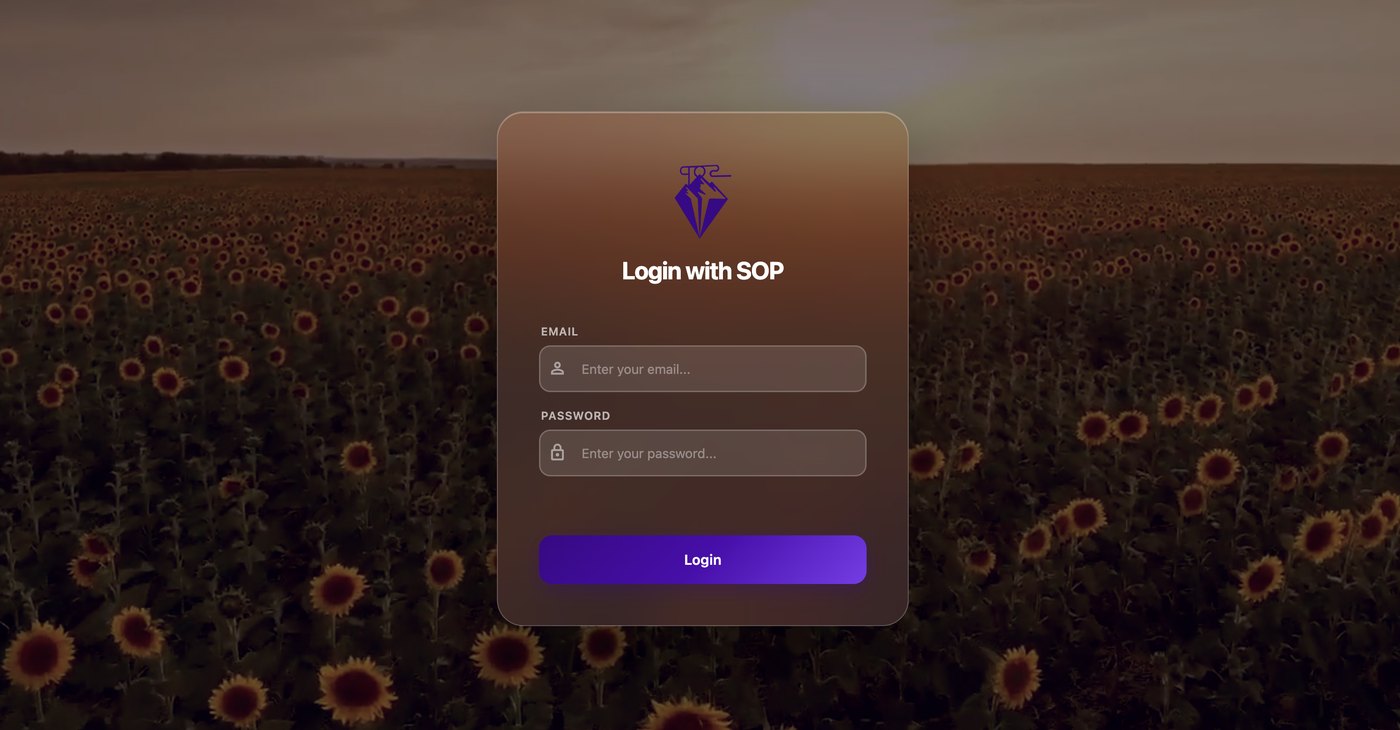
- Use Google Chrome Please log in with Google Chrome — lessons are most stable there. Students in mainland China who cannot install Chrome may use Microsoft Edge. Please do not open the class link from inside WeChat, QQ or DingTalk: those built-in browsers have no address bar and cannot do video. Copy the address into Chrome or Edge and open it there.
- Type in the system address Type study.sop.com.ph into the address bar and press Enter to reach the login screen.
- Enter your account and password Enter the account and password SOP gave you, and your own student page opens.
Online course system
study.sop.com.ph2. Check that your camera and microphone both work.
3. Wear headphones — the sound is clearer and more focused, and it stops echo.
Inside the classroom
As your lesson time approaches, the system takes you into the classroom.
- The countdown Before your lesson time, a dark countdown box on the right reads Next Class and shows the days, hours, minutes and seconds until it starts.
- Joining the lesson (two doors, the same room) From 15 minutes before the start, two purple Join Class buttons appear and begin to shake: one on the right, where the dark countdown box was, and one on that lesson's card in the SCHEDULE tab. Both lead to the same room — press whichever you like. They stay until 5 minutes after the lesson ends, and a cancelled lesson has none.
- Allow the camera and microphone The first time you enter, the browser asks in the top left whether it may use your camera and microphone. Please choose Allow.
- The whiteboard During the lesson a white board fills the middle of the screen, and your teacher brings up each piece of material on it as you go.
- The video windows You and your teacher appear on the right. Seeing each other makes the lesson work better.
- The chat window The chat window is at the bottom right, for sending text when you need to. At its top right are live translation and a text-size control: if you do not know a word your teacher has sent, press the translate key and choose Chinese (Traditional) to turn the English into Chinese, and the back key to return it to English.
- The notebook The notebook is at the bottom left. Anything you saved while preparing is there during the lesson, and you can write notes as you go — press save when you finish, and they are there for review afterwards.
- Circling and underlining To mark the material during a lesson, click where you want to mark it and move the mouse; the shape you draw appears (blue for you, red for the teacher). The back key at the top right is an eraser — press it to clear what you have drawn.
- The whiteboard toolbar When your teacher opens the Extra Materials board, the pen toolbar can be dragged out of the way by the handle at its top left. The arrow below the handle folds the whole strip down to a single button, to be opened again when you need it. Your choice is remembered for next time.
- Before the lesson starts From the moment you open the classroom until the teacher starts the lesson, the screen is split in two: you on the left, your teacher on the right. A dashed outline on the right means the teacher has not arrived yet, and it says so. Once the teacher starts, the screen changes to the lesson layout.
- Fullscreen The expand icon at the top left of the classroom fills the whole screen with the lesson; press it again to come back. Leaving fullscreen with Esc or F11 works just as well, and the icon changes back with it.
- Star rating At the end of the lesson you rate your teacher with stars. Give the number that fits how the lesson went; the lesson then closes and the classroom screen exits.
Before class
After logging in you will see six tabs: PROFILE, SCHEDULE, HOMEWORK, TESTS, PROGRESS and DONE. Before class you mainly want SCHEDULE and PROFILE.
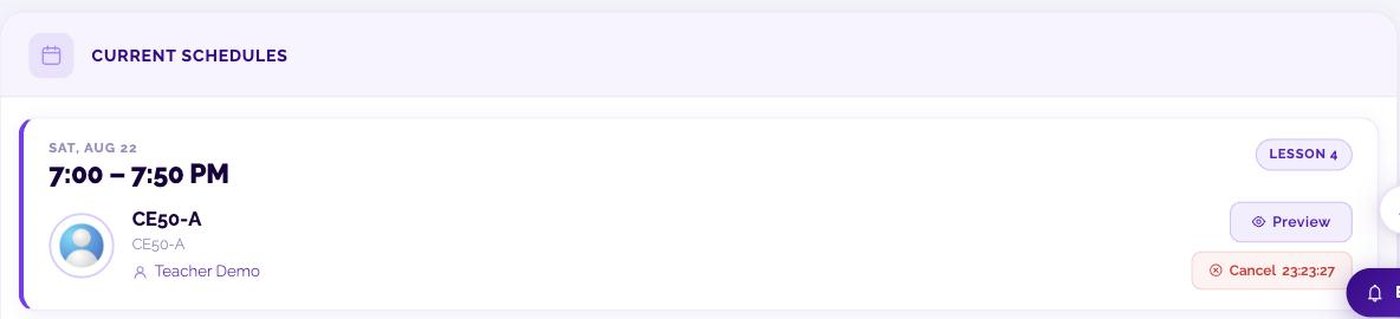

- Preview Find the lesson in the SCHEDULE tab and press Preview on the right; the preparation screen opens in a new tab. As the lesson approaches, Preview fades to remind you that Join Class beside it is the button you want now — but the faded Preview still works.
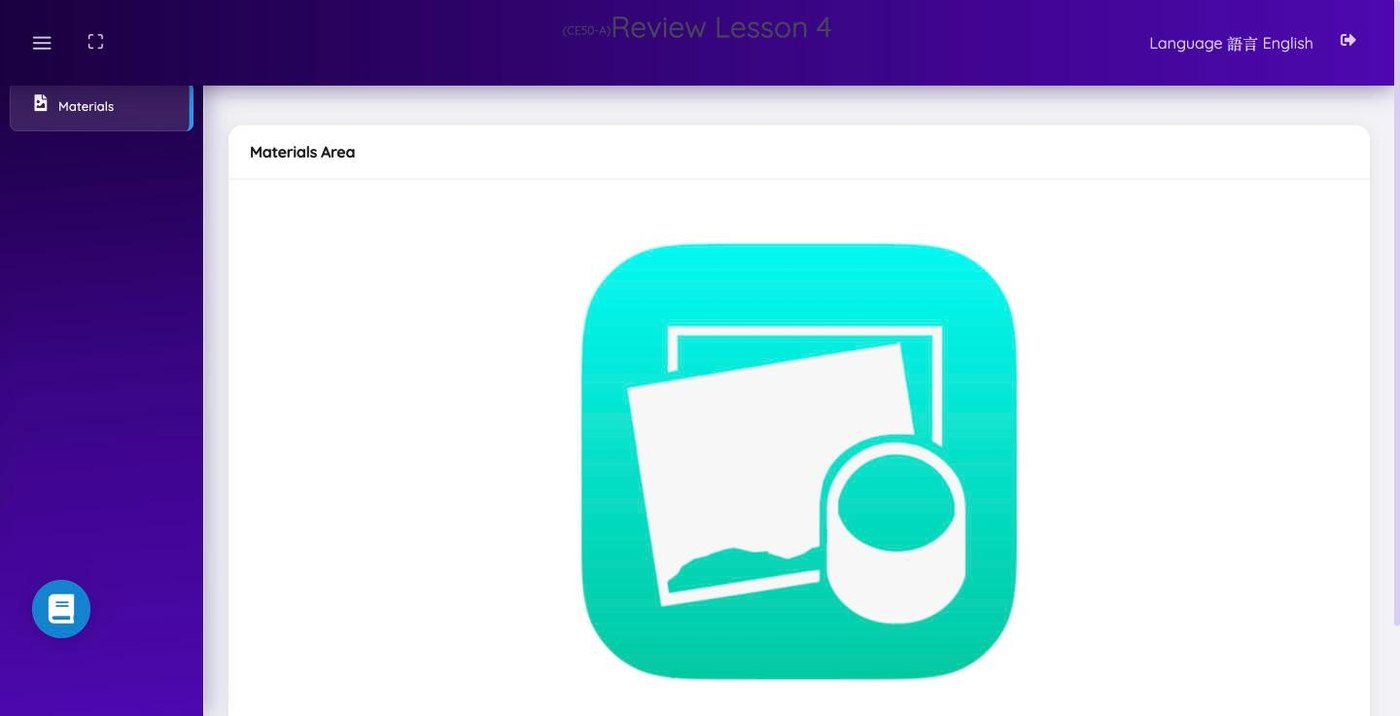
- Materials Materials are on the left of the preparation screen. Click one and it opens larger in the Materials Area in the middle.
- The notebook A blue notebook button sits at the bottom left of the preparation screen. Open it to write notes while you prepare, and press save — they are there during the lesson and afterwards.
- Cancel The red Cancel on the same lesson card is how you take leave. Beside it is a live countdown to the lesson. Press it at least four hours before the start; later than that and the lesson still counts. Once those four hours have passed Cancel disappears from the card — that is normal, not a fault. It means the lesson can no longer be cancelled.
- Language Language 語言 English at the top right of the preparation screen switches the interface between Chinese and English.
- Text size A- A A+ A++ at the bottom right changes the text size across the whole system, which helps when something is hard to read.
- Cannot find something? Every page has a white round "?" button at the top right (Ctrl + / opens it too). Type what you are looking for — "recording", "cancel", "homework" — and it tells you which tab and which button it is on.
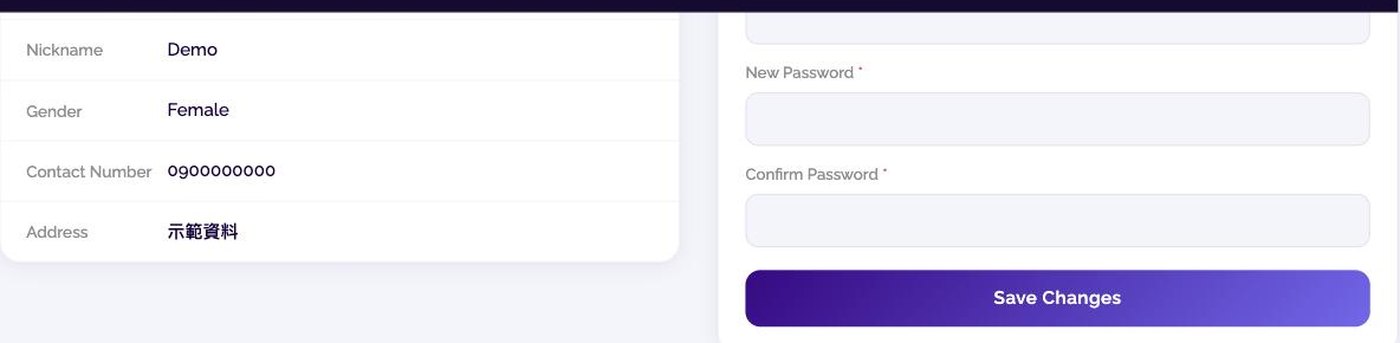
- PROFILE The PROFILE tab shows your own details, and your password can be changed on the right. Press Save Changes or nothing is kept.
After class
When a lesson ends it moves to the DONE tab. Each finished lesson card carries four buttons, one for each kind of review.
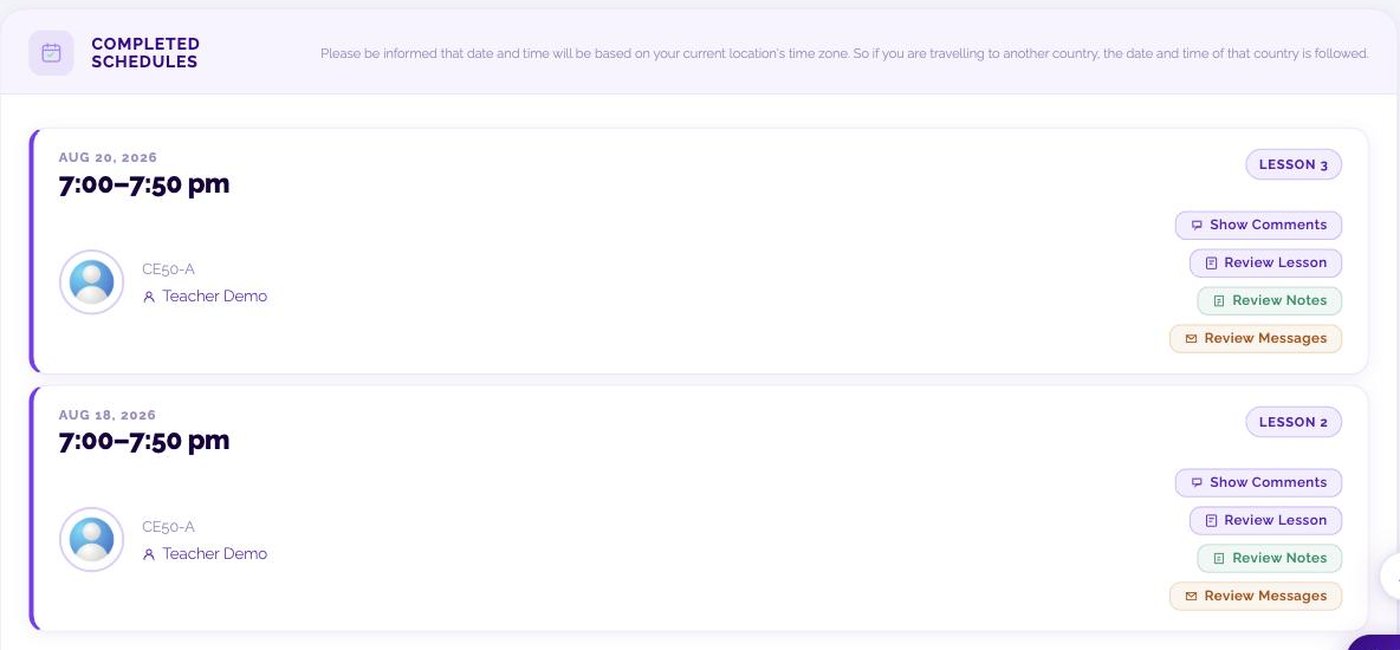
- Review Lesson Opens that lesson's material and content again, to walk through on your own.
- Show Comments Your teacher writes advice after every lesson. This is where to read it.
- Review Notes Everything you wrote while preparing and during the lesson.
- Review Messages The text from the lesson's chat window. On the right of the same screen, the Audio section plays that lesson's recording — this is where to go to hear again what your teacher said.
- TESTS The TESTS tab holds TEST RESULTS and SEVEN SKILLS RESULT.
- PROGRESS The PROGRESS tab charts how your four skills are developing, so you can see where you have gained most.
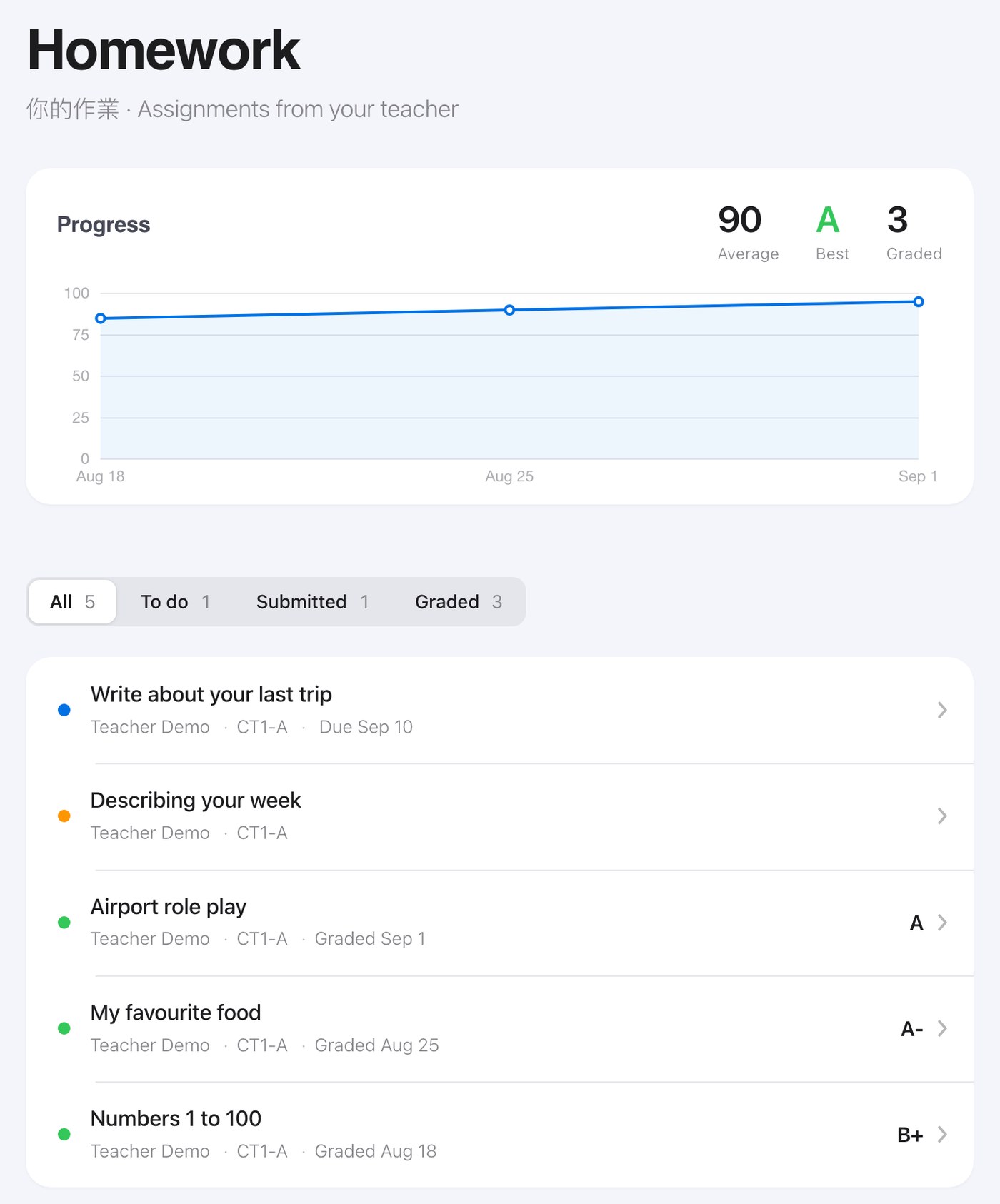
- HOMEWORK There is a required assignment every four lessons — 10 across a 40-lesson course — and your teacher may set extra practice in between. The HOMEWORK tab lists everything set for you, with tabs for All, To do, Submitted and Graded. Click any row to open it: work still to do can be typed straight into the page, and leaving halfway saves a draft that is waiting when you come back; graded work shows your teacher's comment and grade. When a teacher sets an assignment you also get an e-mail, and its button takes you straight to that assignment — logging in first, if you need to, and then returning you to the same one.
- Logging out The log-out icon at the top right leaves the system.
Connection and sound problems
If you cannot hear or cannot see anything before a lesson, work through these in order. Most problems are solved here.
- You see a "Browser check" screen This means the system thinks your browser may not handle video lessons properly, and the screen says why. The quickest answer is to log in again with Google Chrome (Microsoft Edge in mainland China). If you are sure your browser is fine, Continue anyway takes you into the classroom as usual.
- Use a wired connection Please use a cable. On Wi-Fi, make sure both upload and download are above 10 Mbps and that nobody else is sharing the line.
- Close anything else using the microphone or camera Skype, Zoom, or another tab that also has the microphone or camera — they interfere with the classroom. Please have only one classroom open at a time.
- Unplug the device, plug it back in, reload Unplug and reconnect your headphones, microphone or camera, then press Ctrl + R (Cmd + R on a Mac) to reload the page.
- The computer cannot see the USB device If the camera or headset is not detected at all, try a different USB port — directly on the computer, not through a hub — or another computer. This is usually the computer, not the network or the system.
- Nothing worked — how to report it Every page has a report button at the bottom right, which sends us exactly what is happening, and it works during a lesson too. You get a report number back: please keep it, because quoting it later lets us find your full record. The report screen appears in whichever language your interface is set to.
- The sound went quiet after Chrome updated A Chrome update sets its own volume to the minimum. Right-click the speaker icon by the clock, choose Open Volume Mixer, and you will see Google Chrome turned right down. Raise it to match everything else.
The picture freezes or the sound breaks up during a lesson
- When your upload gets bad, the classroom now lowers your own video on its own so the sound keeps its share of the line, and raises it again once the connection steadies. A softer or smaller picture during a bad patch is the system protecting the lesson — not a fault, and nothing for you to do.
- Stop anything else uploading or downloading on the same connection: cloud sync (OneDrive, Google Drive, Dropbox), system updates, backups, and anyone else at home streaming or downloading.
- Use a network cable rather than Wi-Fi.
- If it is bad, turn your own video off and keep the sound — the lesson can carry on.
Contact us
Any question about your course, your account or your rights — please get in touch.
Student services
service@sop.com.phOnline course system
study.sop.com.phPlease include your name and the course you registered for, and we will deal with it faster.